Help for Goodtime online employee time tracking
Login with your email address and password.
Stay signed in: With this option, we will restore your session automatically if you close your browser without logout. Therefor we use cookies. Do not check this if the computer is used by several users. Logging out terminates the session always finally. Optionally, you can of course use the auto-save-function of credentials of your browser for fast login.
The account of the initial user is always the Admin account. The Admin-user is a privileged user, who can manage and maintain the whole time recording system (see The different user roles).
The attendance list shows all staff members with their current time stamp and provides information on their current presence. So the attendance list works just like a common table of attendance. How a time stamp is displayed in the attendance list will be determined by the category of the time stamp as well (see Creating a new time category). By default, the attendance list is displayed for the Admin only. It can be turned on or off in the Settings for other user.
The time clock is used for recording the working hours and performs like a classic time recorder. This way of time tracking is available to all user.
Simply confirm the creation of a time-entry by clicking on the according Start - or Stop-button. The application captures the working hours in minute increments. Working hours that span over more then one day are recognized.
If in the Settings the entry Time clock tolerance has a value exceeding 0 minutes, then the users may adjust the punching-time of the attendance recorder by the given time span.
The time for the time tracking is obtained from Goodtime-server, considering your time zone (see Settings). The time displayed in your browser is not updated automatically. You can trigger an update by clicking on the refresh-icon on the head of the recorder. But whatever time is shown in your browser - always the server time is used for the time stamp. The server time is synchronized via NTP - so it is very accurate.
Click on Timesheet on the menu to view or edit the recorded working hours. If you are in the role of an admin or timesheet manager, clicking on time sheet brings up a list of all selectable users (including your own user). Please select the desired employee, by simply click on the user. If you are only allowed to edit your own time entries, you will be forwarded to your own time sheet directly.
The admin and timesheet managers can view and edit the time stamps of all users - including their own working hours. Regular user whose property may edit own time stamps is checked in the settings, can change their own time stamps in the time sheet as well. If this option is not ticked for a user, the user may view his own time data but can not change it by the time sheet.
In the top of the page you can set the desired week, the desired month and year. The time stamps for the set period of time is displayed immediately after the selection. When you choose All for the weeks value, the time stamps for the whole accordant month will be displayed. You can also use the buttons Week and Month to switch between the two views. With Today you will always jump to the current week or for the current month.
Click on Create new Time Stamp to add a new time entry. In addition to the period of time you can adjust the type of time entry (aboard, leave ...) and assign a project for the time stamp if desired. Fields which are not relevant to the selected time type are hidden automatically. For example, for time stamps which are calculated by the day (see Create a new time category) a field for the date but no fields for entering the start- or end-time are displayed. If the time stamp exceeds the limit of a day, click on the over several days-check box. Additional fields for a 'multi-day' time stamp will be displayed then. The generated time stamp will cover the entire adjusted period.
Time entries can be entered in an "abbreviated" style, such as 138 instead of 1:38PM or 10p for 10:00PM - in the AM/PM time format (or 1338 for 13:38 and 15 for 15:00 if you use the 24-hour time format).
Depending on whether you ticked the Allow overlapping timestamps option in the Settings the application proofs if there already exists a time stamp in the given time period.
Time entries can be locked by the months - that means they become protected against changes. Lockable time entries must be ticked in the Settings in order to use this function.
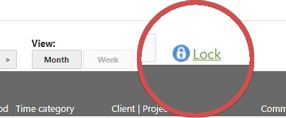
To lock a month, click Lock in the timesheet next to the month- or week selection. The time entries of locked months can no longer be changed; time entries can not be deleted or added for this month.
A lock can be removed by clicking on Unlock. The Administrator and users with the timesheet manager role are authorized to unlock a Month.
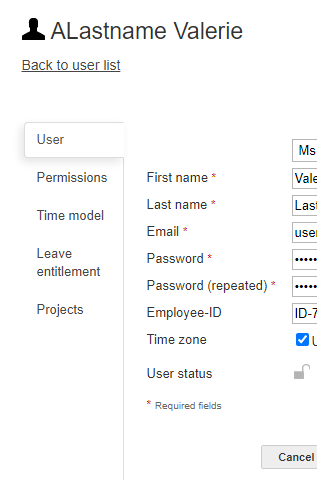
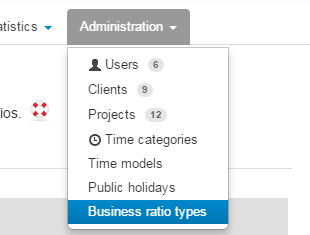
For collecting labor time data for staff members you first must create new user accounts: If you are in the role of the admin of the online time tracking system or if you have assigned a user manager role, then you can access the menu item Users via the menu item Administration. Click on it and then click on Create new User.
Enter a valid email address for the new user. This email address is also the name for the login.
If you change the User status of the user from active to closed then the user can not logon any longer. This approach is for example recommended for employees who leave the company.
In the tab Permissions you can change the permission and roles of a user: If you tick the Permit to edit own time entries - check box, then the user may delete or edit his own time stamps (e.g. by his time sheet). If this option is not checked, the user can create time stamps only by the time clock.
Under roles you can assign the roles user manager, timesheet manager, project manager or application manager to the created user. See: The different user roles
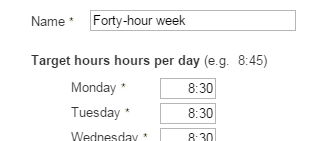
In the Time model tab, a working time model can be assigned to the user. Learn more about working time models.
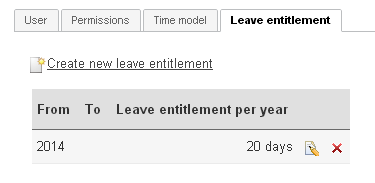
On the Leave entitlement tab, the leave entitlement is set up for this user. Further information on Leave entitlement management.
In the Projects tab, the employees participation in projects can be defined. For the user only those projects are displayed in the project selection field for which he is a participant. Alternatively, project participation can also be managed at the individual projects - see also: Create a new project.
The admin account will be assigned to the user that creates the time tracking system. This account has all rights and can not be deleted, but transferred to another user. The administration of the entire time and attendance system can be done with it. For example, the administrator can create new users or change the global settings of the online time tracking system.
Users are regular employees with no special roles assigned. They are limited to the essential actions of tracking their own work time. They can for example punch in or edit (depending on the user settings) their own working time data.
User manager: Manages all users. A user manager can, for example, create and change staff member accounts, or delete them. He also assigns permission to users and manages their entitlement to holidays.
Timesheet manager: Manages timesheets and may insert, delete or edit time stamps of other users. In addition, he can manage the time categories and export timesheets. The timesheet manager also manages leave entitlements and business ratio types. The role of the timesheet manager can be assigned for access to all users or only for selected users.
Project manager: Manages all projects. The project manager can create and manage projects, inspect the project statistics and export the project data. Business ratio types can be created, deleted or changed by the project manager.
Application manager: Manages the global settings of the online attendance recording system. He may for example change the time zone or the company address. He may also view the invoices.
Details about the permissions of each role can be found in this tabular overview »
Admin and timesheet manager are permitted to create new Time categories. Choose Time categories in the Administration menu and click on Create new time category.
Label: The name of the time category which is displayed to all user.
Input Type: Working time can be tracked by the hour or by the day (e.g. for leave). Just select the type of tracking you need.
Sum type: Sets how the time category is treated in the summation.Project time: If this box is checked, then the time category can be assigned to projects. For example for the time category 'leave' is does not make sense to allow an assigned to projects.
On Site: The entry determines whether the activity is carried out on location. So if the employee is on site. Time stamps with checked On site-field will be listed on the Attendance list as such.
Leave:
If this check box is checked, then the time entries with this time category are considered for the calculation
of the taken leave or the remaining entitlement of holidays. The input type of the time category
(by the hour or by the day) must match the type of the leave entitlement (days or hours),
so that the according time item is taken into account.
Tip: If you use only one of the two leave
entitlement types (days or hours) in your web-based time sheet, we recommend to delete
the unused vacation time category or set its status to close - to eliminate erroneous
input in the first place.
Status If you set the status to 'closed' then this time category can't be selected for time entries any longer. Any change in an existing time category also affects all existing time entries that use this time type. Therefore sometimes it is better to create a new time category and set the status of the old category to 'closed' than edit the existing time category.
Default Selection: The selected time type is displayed as 'pre-selection' for all users for choosing a time type.
Automatic breaks are set up for each employee in the Time model tab. More »
In the Public Holidays menu, public holidays and days off are managed for your online time sheet. More »
Business ratios can be used to store numeric values with a time entry. For example, expenses or the number of driven kilometers. Please note that Business ratios can be enabled or hidden in Settings - View.
Under Administration Business ratios types, the various types of Business ratios are defined. A Business ratios type essentially consists of a name (for example, "expenses") and an optional unit (for example, "€"). These Business ratios types can then be stored as a numerical value with a time entry.
The leave entitlement management administers entitlement to holidays, taken leave, paid out vacation and remaining leave entitlement. Information about leave appear only for users for whom a leave entitlement is established. Read more »
If you are logged in as admin or project manager the menu item Projects is displayed in the Administration menu. Click it and then click the link Create new Project. Enter a name for the project. This name will be displayed for the selection of the project for time tracking. If you have the option Enable clients for projects ticked in the application settings, you can assign a customer the new project.
In the tab permissions the project participants can be selected. The default setting All users are project participants makes all active users to project members automatically. Pick Select project participants individually... to select single staff members to participate in the project. Only project members can assign the project to time entries. So for the staff member only those projects will be displayed in the time tracking system that concern him actually.
If you set the Project state to closed, the project is basically no longer available for assignment to time stamps.
You can turn off the selection of projects respectively the complete project management if you don't need it: See Settings.
In the Settings for the Goodtime Account you can, for example, change the master data such as the company address. The current costs and the invoices issued for the Time and Attendance system are also displayed. These settings can be viewed and changed by the administrator and users with the role of an application manager.
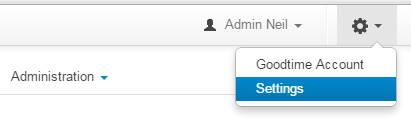
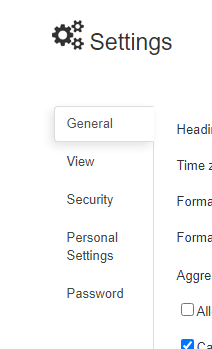
The settings are grouped thematically into particular tabs.
The respective sections are discussed in detail individually:
The menu item Export working hours is available to all users. Each user can export his own working hours. Administrators and timesheet manager can export any working hours.
Select a week, a month and a year for which you want to export your time sheet data. In place of a single week or a single month you can select the All option: Then your time registration data for the entire month respectively year are exported. Time stamps without an ending time are not included in the export. 'Empty' months without any time stamps will be omitted.
Filter by project: The project selection with the filter icon is used to limit the export to a particular project. So only the working hours, which pertain to the selected project, are exported.
Export Microsoft-Excel-format: Depending on your selections a single Excel sheet for the selected month is created - or an Excel workbook which holds a sheet for each month and one additional sheet for the annual summary.
If you can not or want not work with Microsoft Excel: The exported Excel format can also be opened, processed and converted in various other formats by LibreOffice, which is available for free. LibreOffice is available for almost all platforms and operating systems.
Export PDF-format: The exported time recording data can be opened by the Acrobat Reader.
An additional list of all active users is displayed. Please select all those staff members from the list whose time stamps you wish to export. If you select more than one user at a time, the working hour data for all selected users are packed in a ZIP archive. Here you will find information about a free zip program.
The menu item Export project hours is available to administrators and project managers.
The selection of the export period is analogous to the Export of working hours. From the list of all open projects, arbitrary projects can be selected for export. The time data of each project are stored in a single Excel spreadsheet. So the result of the export is always a single Excel file containing the time data of all selected projects.
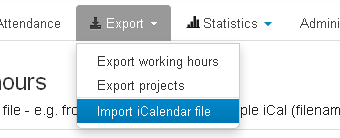
The iCalendar format is widely spread and used, amongst others, by Apple's Calendar and Google Calendar. Possible filename extension for iCalendar files are: .ics, .ifb, .iCal, .icalendar or .iFBf. So for example you can record your working time with the Google Calendar and then import the data into the Goodtime time tracking system. More »
The data of your timekeeping can be reprocessed and summarized in statistics. Therefor just click the Statistics tab. The statistical data is displayed for example for working hours or project time. The statistical data is displayed for example for working hours and project time. Users may experience different views of the statistics depending on the individual configuration of the timekeeping system and the roles of the user. Both summary data for the entire timekeeping as well as details (for example on projects or clients) are shown. More »
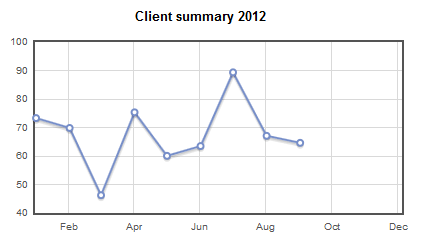
There are two interfaces for Goodtime for software developers: a web service for clocking in and out and a REST interface.
The Android and Apple iOS apps cover the most important functions of the desktop version:
 Support